
You want to tell your readers that bold text is made with the <strong> tag. You write the sentence into your page’s code, save, and something odd happens in the browser: the word <strong> disappears and all the text after it turns bold. The culprit is that <: to HTML it isn’t a symbol to show, it’s the start of a tag.
To write characters like this, and many others you won’t find on your keyboard, HTML has a simple system: HTML entities. They’re short codes, like < or ©, that the browser turns into the right symbol.
In this guide you’ll find a complete cheat sheet of the most used symbols, ready to copy with one click, and I’ll explain when to use an entity, when a numeric code and when you can simply type the character as it is.
What is an HTML entity?
An HTML entity is a way of writing a character using only letters and numbers. It always starts with & and ends with a semicolon. In between there’s the character’s name, or its number.
The same symbol can be written in three ways, and the result is identical:
- By name:
©. Easy to remember, but it only exists for characters that have a name. - By decimal number:
©. Works with any character. - By hexadecimal number:
©. The same number in base 16, the one you see in Unicode codes likeU+00A9.
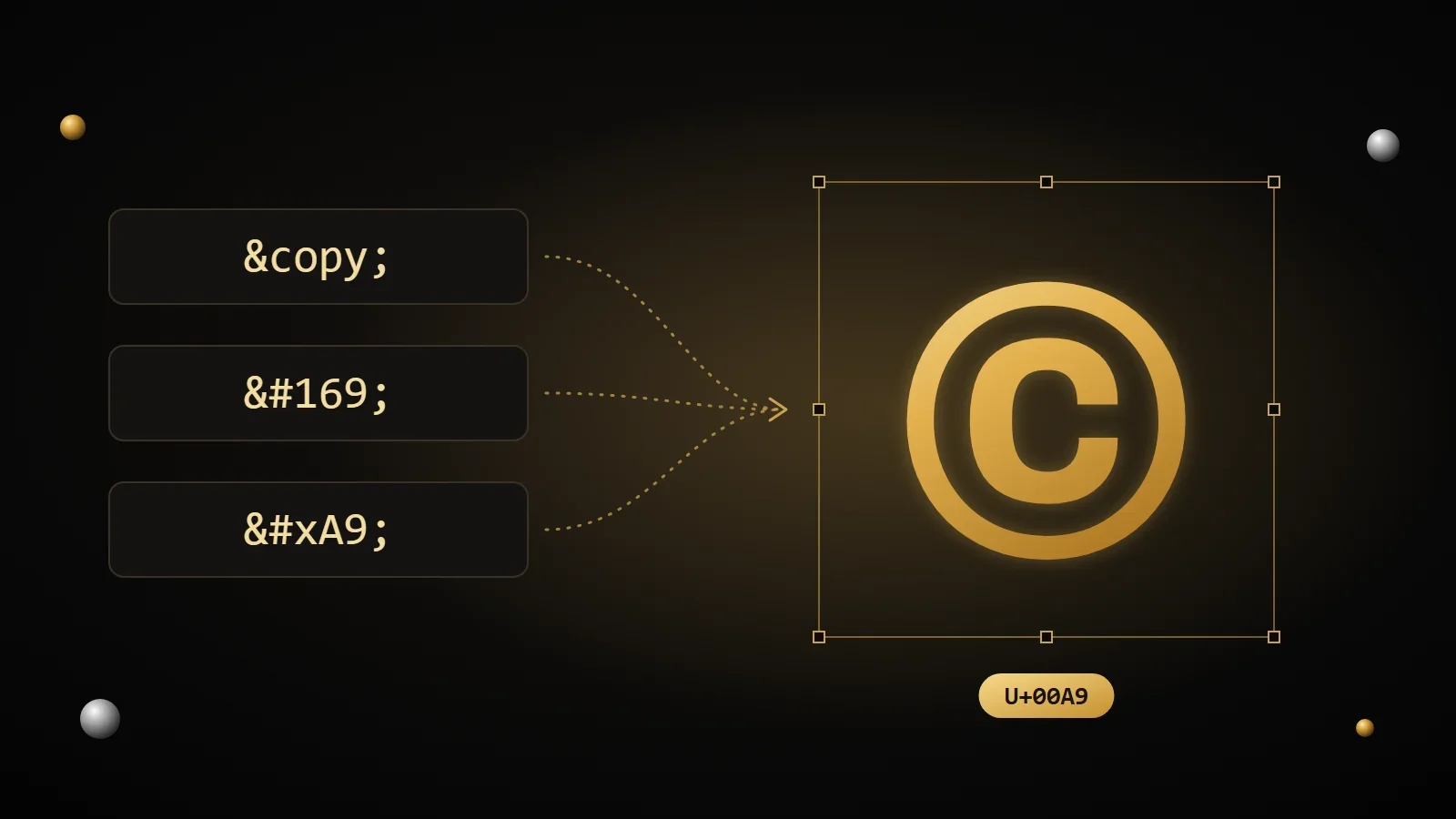
That number isn’t made up: it’s the code the Unicode standard gives to every character in the world. I cover it properly in the guide to ASCII, Unicode and UTF-8, but for now all you need to know is that every symbol has its number, and with that number you can always write it.
The five entities you need to know
There are more than two thousand names, but only five are truly essential. They’re the characters HTML uses for its own syntax, so when you need them as text they have to be written as entities.
| Character | Entity | When you need it |
|---|---|---|
& | & | Always, in text and in attributes: it’s the character that opens every entity. |
< | < | In text: otherwise the browser takes it for the start of a tag. |
> | > | Hardly ever required, but used together with < for clarity, for example when you show code. |
" | " | Inside an attribute written between double quotes, like title="...". |
' | ' | Inside an attribute written between single quotes. |
Warning
The & is the trickiest one. If you write it on its own and it’s followed by a word that looks like an entity name, the browser may convert it: Prices© becomes “Prices©”. In text, always write & and you’ll have no surprises.
Entity, numeric code or the character itself?
This is the question that really matters. If your page declares the UTF-8 encoding, and almost every site does today, you can type most symbols directly: é, €, ©, →. The browser shows them with no codes at all.
<head>
  <!-- among the first lines of the page -->
  <meta charset="utf-8">
</head>
Entities are still useful in three cases:
- For the five reserved characters you’ve just seen. There’s no alternative here.
- For invisible characters, like the non-breaking space. Typed directly, you can’t tell it from a normal space; written as
, you spot it immediately in the code. - When you can’t type the symbol, or you aren’t sure about the encoding of the file you’re writing in.
Tip
The numeric code is the wild card: ₹ writes the Indian rupee sign even though it has no name. When a symbol has no named entity, the cheat sheet below gives you its numeric code instead.
The symbol cheat sheet
Here are the symbols you’ll need most often, grouped by category. For each one you get its name, the HTML entity (or the numeric code when there’s no name) and the Unicode code. “Copy” gives you the symbol, “Copy code” the entity to paste into your HTML.
Reserved characters
-
Ampersand &U+0026 -
Less-than sign <U+003C -
Greater-than sign >U+003E -
Quotation mark "U+0022 -
Apostrophe 'U+0027
Spaces and invisible characters
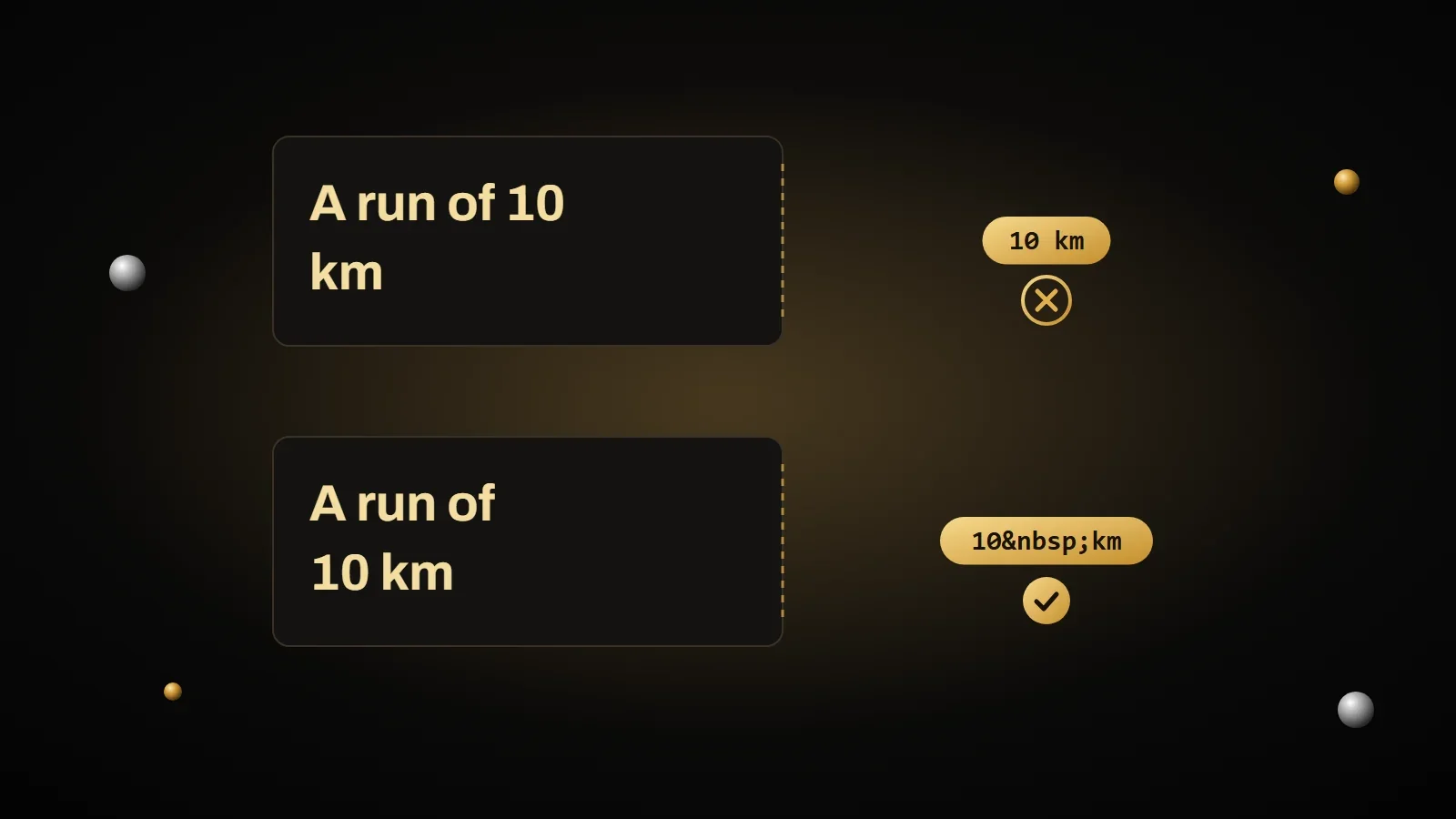
These are characters you can’t see, but they change how text wraps. The most useful is the non-breaking space: it keeps a number and its unit, or a title and a name, together, so they don’t end up on two different lines.
-
No-break space U+00A0 -
Narrow no-break space  U+202F -
Thin space  U+2009 -
En space  U+2002 -
Em space  U+2003 -
Zero-width space ​U+200B -
Word joiner ⁠U+2060 -
Soft hyphen ­U+00AD
The soft hyphen (­) stays invisible as long as the word fits on the line. If the word has to wrap, the browser breaks it there and shows the hyphen: handy for very long words in narrow headings.
Punctuation and quotation marks
In polished writing, straight quotes " become typographic quotes: “ ” and ‘ ’ in English. And the short hyphen on your keyboard isn’t a dash: for ranges you use – (as in 9–5), and for breaks in a sentence —.
-
En dash –U+2013 -
Em dash —U+2014 -
Ellipsis …U+2026 -
Left guillemet «U+00AB -
Right guillemet »U+00BB -
Left double quotation mark “U+201C -
Right double quotation mark ”U+201D -
Left single quotation mark ‘U+2018 -
Right single quotation mark (typographic apostrophe) ’U+2019 -
Double low quotation mark „U+201E -
Middle dot ·U+00B7 -
Bullet •U+2022 -
Prime (minutes, feet) ′U+2032 -
Double prime (seconds, inches) ″U+2033 -
Inverted question mark ¿U+00BF -
Inverted exclamation mark ¡U+00A1
Copyright and marks
-
Copyright sign ©U+00A9 -
Registered sign ®U+00AE -
Trade mark sign ™U+2122 -
Sound recording copyright ℗U+2117 -
Section sign §U+00A7 -
Pilcrow (paragraph sign) ¶U+00B6 -
Dagger †U+2020 -
Double dagger ‡U+2021 -
Numero sign №U+2116 -
Degree sign °U+00B0
Currency symbols
-
Euro sign €U+20AC -
Dollar sign $U+0024 -
Pound sign £U+00A3 -
Yen sign ¥U+00A5 -
Cent sign ¢U+00A2 -
Indian rupee sign ₹U+20B9 -
Won sign ₩U+20A9 -
Generic currency sign ¤U+00A4
Arrows
-
Leftwards arrow ←U+2190 -
Rightwards arrow →U+2192 -
Upwards arrow ↑U+2191 -
Downwards arrow ↓U+2193 -
Left right arrow ↔U+2194 -
Up down arrow ↕U+2195 -
Leftwards double arrow ⇐U+21D0 -
Rightwards double arrow ⇒U+21D2 -
Left right double arrow ⇔U+21D4 -
Return arrow ↵U+21B5 -
Leftwards arrow with hook ↩U+21A9 -
Rightwards arrow with hook ↪U+21AA -
North east arrow ↗U+2197 -
South east arrow ↘U+2198 -
South west arrow ↙U+2199 -
North west arrow ↖U+2196
Math symbols
The minus sign from − is wider than the hyphen on your keyboard, and it’s the right one in formulas: “−5” reads better than “-5”. The same goes for the multiplication sign: “3 × 4” instead of “3 x 4”.
-
Multiplication sign ×U+00D7 -
Division sign ÷U+00F7 -
Plus-minus sign ±U+00B1 -
Minus sign −U+2212 -
Not equal to ≠U+2260 -
Almost equal to ≈U+2248 -
Less-than or equal to ≤U+2264 -
Greater-than or equal to ≥U+2265 -
Infinity ∞U+221E -
Square root √U+221A -
Summation ∑U+2211 -
Pi πU+03C0 -
One half ½U+00BD -
One quarter ¼U+00BC -
Three quarters ¾U+00BE -
Per mille sign ‰U+2030 -
Superscript two ²U+00B2 -
Superscript three ³U+00B3 -
Micro sign µU+00B5
Accented letters
In UTF-8 pages you can type them directly. Entities come in handy for letters your keyboard doesn’t have, like the capital É: on Windows you can also hold Alt and type 0201 on the numeric keypad.
-
a with grave accent àU+00E0 -
e with grave accent èU+00E8 -
e with acute accent éU+00E9 -
i with grave accent ìU+00EC -
o with grave accent òU+00F2 -
u with grave accent ùU+00F9 -
Capital A with grave accent ÀU+00C0 -
Capital E with grave accent ÈU+00C8 -
Capital E with acute accent ÉU+00C9 -
Capital I with grave accent ÌU+00CC -
Capital O with grave accent ÒU+00D2 -
Capital U with grave accent ÙU+00D9 -
c with cedilla çU+00E7 -
n with tilde ñU+00F1 -
u with diaeresis üU+00FC -
Sharp s (eszett) ßU+00DF
Other symbols
-
Check mark ✓U+2713 -
Ballot X ✗U+2717 -
Black star ★U+2605 -
White star ☆U+2606 -
Heart suit ♥U+2665 -
Diamond suit ♦U+2666 -
Club suit ♣U+2663 -
Spade suit ♠U+2660 -
Telephone ☎U+260E -
Eighth note ♪U+266A -
Lozenge ◊U+25CA -
White circle ○U+25CB
The most common mistakes with entities
- Forgetting the semicolon. Some entities work without it, for compatibility with old HTML, but many don’t. Always add it.
- Getting the case wrong. Names are case-sensitive:
éis “é”,Éis “É”. - Converting twice. If your page shows
&instead of&, the text has been converted twice:&became&, and then&amp;. - Using entities outside HTML. They only work in HTML. In JavaScript, CSS or Python, special characters are written another way, with a backslash.
That last point opens up a whole world. Entities are HTML’s way of saying “this character is text, not code”. Other languages have the same problem with quotes and line breaks, and they solve it with escape sequences, like \n and \".
Frequently asked questions
How do I write the © symbol in HTML?
With the entity ©, with the code ©, or by typing © directly if the page is UTF-8. The result is identical.
What’s the difference between and a normal space?
A non-breaking space prevents a line break at that point, and the browser doesn’t merge it with other spaces. Use it to keep a number and its unit together, not to create empty space: that’s a job for CSS.
Do I still need HTML entities with UTF-8?
For most symbols, no: you type them directly. You still need them for the reserved characters (&, <, > and quotes inside attributes), and they’re handy for invisible characters.
How do I type a capital É?
In HTML with É, or by copying it from the cheat sheet above. On Windows you can also hold Alt and type 0201 on the numeric keypad.
Why do I see & on my page instead of &?
Because the text was converted twice: the first time the & became &, the second time the & of that code was converted too. It should be converted only once, right before it goes into the HTML.
How many HTML entities are there?
The HTML standard lists 2,231 named ones. Of these, 106 are the old form without a semicolon, kept for compatibility with older pages. For every other character there’s always the numeric code.
Sources and further reading
- WHATWG: the official list of named character references
- WHATWG: how character references work
- MDN Web Docs: character reference
- W3C: using character escapes in markup and CSS
Now you know how to write any symbol in HTML without breaking the page. But if you also work with JavaScript, Python or PHP, sooner or later you’ll meet a string that stops halfway because of a quote. In the next article I explain escape sequences: what \n, \t and \" are, and how to use them without mistakes.
Comments
No comments yet. Leave the first one!
Leave a comment