Ever noticed that big-brand logos always look perfect? On a smartwatch screen and on a six-meter billboard alike. The secret isn’t expensive software, it’s a file format you use every day without knowing it: the SVG.
An SVG isn’t a photo. It isn’t made of colored dots, but of instructions that tell the browser what to draw. That’s why you can scale it as much as you like without it ever getting blurry.
In this guide I’ll show you how it works, when it’s better than PNG and JPG, how to edit it and how to put it on your website. At the end you’ll find free SVGs to copy or download. But first, there’s a hidden detail that can ruin a file without you noticing. We’ll get to it shortly.
What is an SVG file?
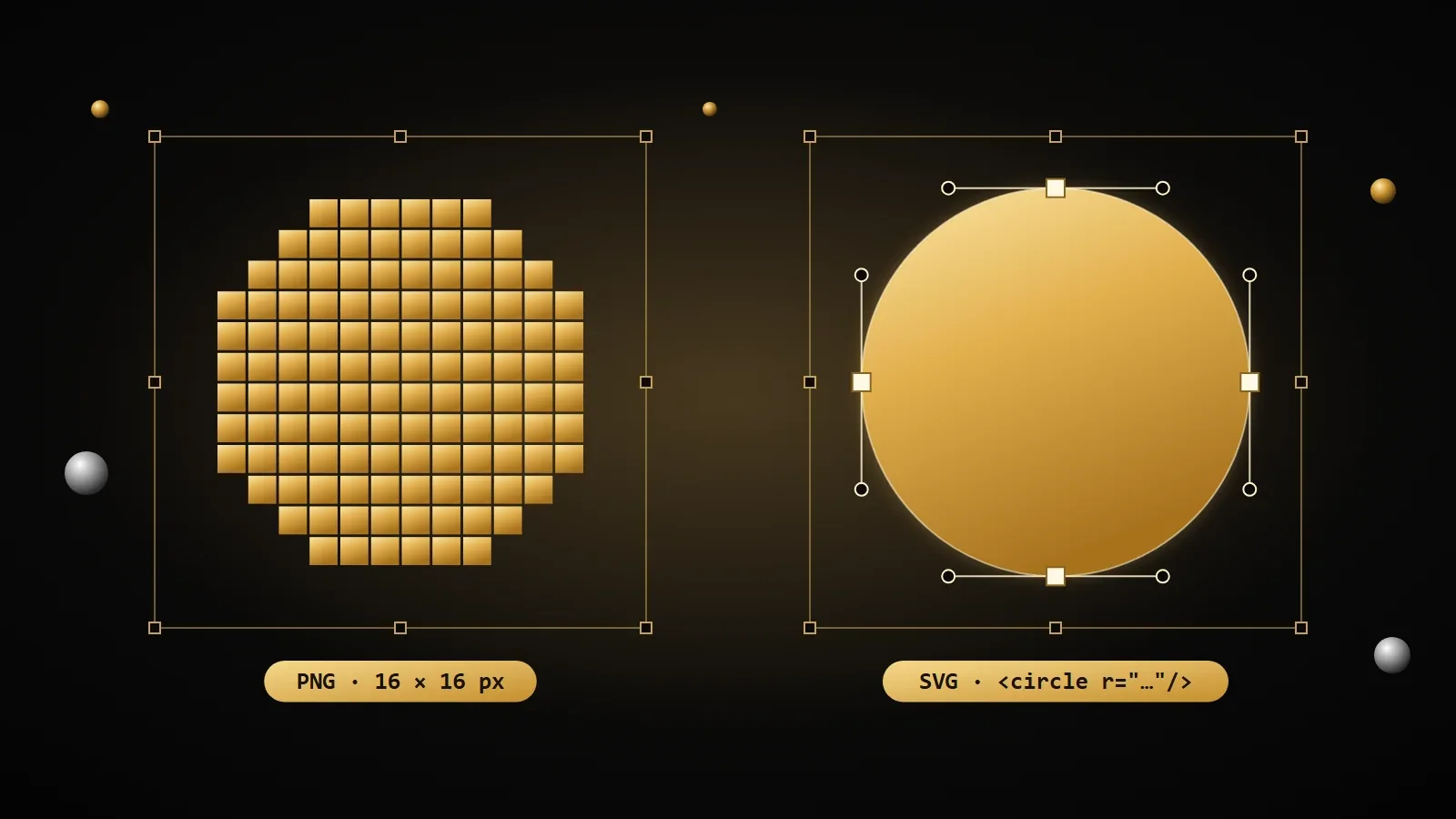
An SVG file (Scalable Vector Graphics) is an image made of instructions instead of pixels. It doesn’t hold thousands of colored dots, just directions like “draw a circle here, this size, this color”. That’s why it stays sharp at any size.
Picture the difference. Zoom into a photo of a circle and sooner or later you’ll see little squares. Zoom into an SVG and the circle stays perfect, because the browser redraws it every time at exactly the right size.
And there’s more: since it’s made of instructions, an SVG can be opened, edited and even animated. It’s a W3C standard, the body that writes the rules of the web, and every modern browser reads it with nothing extra installed.
SVG, PNG or JPG: which one to choose
There’s no best format overall, only the right one for each image. The rule of thumb is simple: if the image can be drawn, use SVG; if it can only be photographed, use a pixel format.
| Format | What it’s made of | Best for | Transparency | When enlarged |
|---|---|---|---|---|
| SVG | Instructions (vector) | Logos, icons, illustrations, charts | Yes | Stays sharp |
| PNG | Pixels, lossless | Screenshots, images with text, graphics with few colors | Yes | Gets blurry |
| JPG | Pixels, lossy compression | Photos | No | Gets blurry |
A logo as an SVG often weighs just a few kilobytes and looks perfect on every screen, including the high-density displays of phones. The same logo as a PNG would need several sizes, each one heavier.
The other way around, a photo as an SVG makes no sense: describing every shade would take millions of instructions. Photos belong in JPG, or in newer formats like WebP and AVIF.
Tip
Only have your logo as a PNG? Don’t run it through an automatic converter hoping for a good SVG: the result is almost always full of useless points. If you really need a vector, it has to be redrawn or carefully traced in a design program.
What’s inside an SVG
Here’s the part almost nobody tells you: an SVG is a text file. Open it in Notepad and, instead of gibberish, you’ll find code you can actually read. This, for example, is a complete gold circle:
<svg xmlns="http://www.w3.org/2000/svg" viewBox="0 0 24 24" width="96" height="96">
  <!-- a circle in the middle of a 24 × 24 canvas -->
  <circle cx="12" cy="12" r="9" fill="#e2b04e" />
</svg>
It reads almost like a sentence. cx and cy are the center, r is the radius and fill is the fill color. Swap #e2b04e for red, save, and the circle turns red.
The viewBox: the hidden detail
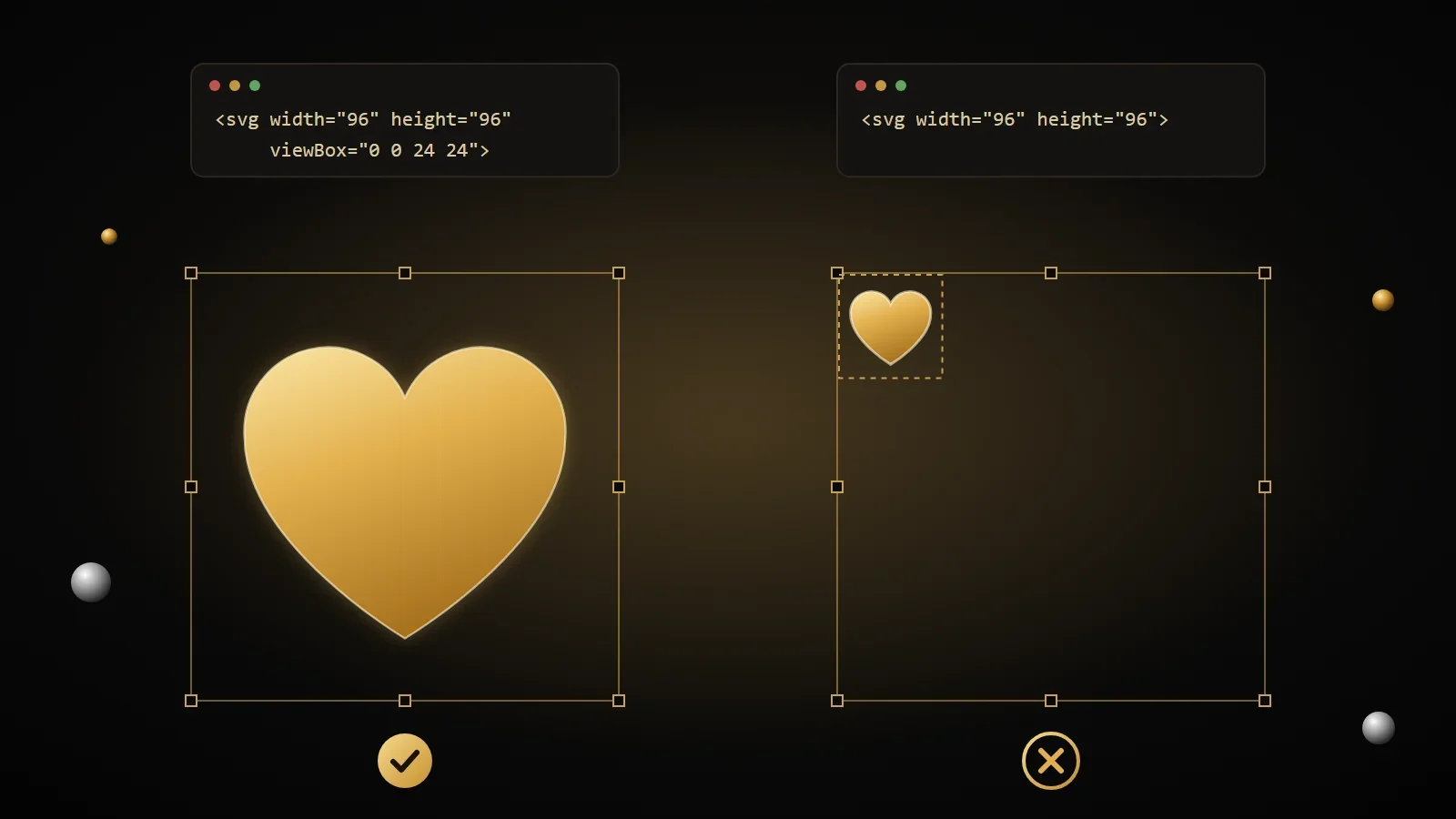
Remember the detail I mentioned at the start? It’s right there, on the first line: viewBox="0 0 24 24". Four numbers that tell the browser “my drawing lives in a space 24 wide and 24 high, starting from the top-left corner”.
Thanks to the viewBox, the browser knows how to fit the drawing into any size. Give it width="96" and it scales everything up four times, in proportion. Without a viewBox, changing the width and height only makes the canvas bigger: the drawing stays small in the corner, or gets cut off.
Warning
Some design programs, or an overly aggressive “optimization”, remove the viewBox and keep only width and height. The file looks fine until you try to resize it: then it gets cropped or stays tiny. Before using an SVG, open its code and check that the viewBox is there.
How to open and edit an SVG
To look at it, your browser is enough: drag the file into a Chrome, Firefox, Safari or Edge window and you’ll see it right away, full screen and sharp. To edit it you have three options, from the simplest to the most complete.
- A text editor, like Notepad or Visual Studio Code. Perfect for small tweaks: changing a color, checking the viewBox, removing an element.
- Inkscape, free and open source. SVG is its native format, so it’s the most natural choice for drawing and editing.
- Figma or Illustrator. They open SVGs like any vector drawing and export them back to SVG when you’re done.
A practical tip: when you export from a design program, look for the option to save an SVG “for the web” or “optimized”. The file will be cleaner and lighter.
How to use an SVG on your website
Your SVG is ready. Now it needs to go on the page, and you have three ways to do it. Each one has its strength, so the choice depends on what you need.
With the img tag
It’s the simplest way, exactly like adding a photo:
<img src="logo.svg" alt="Studio Rossi logo" width="160" height="40">The browser caches it like any other image, and it’s also the safest way: any code hidden in the file won’t run. The catch is that you can’t change its colors from the page’s CSS.
Right inside the page’s code
You can paste the SVG code straight into your HTML. That way it becomes part of the page, and you can color it, animate it and change it on hover with CSS.
<button type="button">
  <svg viewBox="0 0 24 24" width="20" height="20" aria-hidden="true">
    <path d="M4 12h16" stroke="currentColor" stroke-width="2" />
  </svg>
  Collapse
</button>
Here aria-hidden="true" tells screen readers to skip the drawing: the word “Collapse” already explains the button. If the SVG is the only thing that carries the meaning, add role="img" and a label with aria-label instead.
As a CSS background
For a repeating decorative motif, a texture or a shape behind some text, use it as a background:
.section {
  background-image: url("polka-dot-pattern.svg");
  background-size: 40px;
}
The currentColor trick
In the button example you saw stroke="currentColor". It means “use the color of the text around me”. So the icon changes color together with the text, even when you switch from the light theme to the dark one, without touching the file.
That’s why almost every professional icon is written this way. It only works when the SVG is in the page’s code, not inside an img tag. If you want a set of icons already built like this, you’ll find them in the free SVG icon library, the next article in the series.
How to make an SVG lighter
An SVG exported from a design program often carries information the browser doesn’t need: the program’s name, hidden layers, comments, numbers with six decimals. Removing it can cut the file size by half without changing a single pixel of the drawing.
- SVGOMG, free and in your browser: drop the file in, choose what to remove and see the result before you download it.
- SVGO, the command-line tool SVGOMG is built on: handy when you have many files or already work with Node.js.
- By hand, for small files: remove comments and metadata, and round numbers to one or two decimals.
Two things to watch. Check that the viewBox is still there after optimizing, and don’t overdo the rounding: with too few decimals, curves get distorted. Then there’s a bonus you get for free: being text, an SVG compresses extremely well, and many servers already send it compressed.
Free SVGs to copy and download
Here’s the collection I promised. Interface icons, seals, repeating patterns, dividers and a sample monogram: all with a viewBox, clean and light. They all use currentColor, so they take on the color of the surrounding text when you paste them into your code. “Copy” gives you the code, “Download” the file.
-

Palette icon -

Pen nib icon -

Layers icon -

Bézier curve icon -

Starburst seal with check -

Laurel badge with star -

Ribbon rosette -

Polka dot pattern -

Wave pattern -

Diamond divider -

Flourish ornament -

Sample AM monogram
I created and curated every SVG in this collection for this site, and they’re yours to use: in personal and commercial projects, for you or your clients, edited however you like. No credit needed, though it’s always appreciated. The only thing I ask is that you don’t resell or redistribute them as they are, on their own or in collections. And the “AM” monogram is just an example: use it to practice, not as a registered trademark.
Frequently asked questions
How do I open an SVG file?
With your browser: drag it into a Chrome, Firefox, Safari or Edge window. To edit it, use a text editor for small tweaks, or Inkscape (free), Figma or Illustrator to work on the drawing itself.
SVG or PNG for a logo?
SVG, almost always. It stays sharp at any size, it’s light and you can change its colors. Keep a PNG version only for places that don’t accept SVG, like some email services and social platforms.
Can I turn an SVG into a PNG or JPG?
Yes, and it’s easy: Inkscape, Figma and Illustrator export it at any size you want. The other way around doesn’t work well, because a pixel image doesn’t contain the instructions to redraw itself: it has to be traced.
Can I print an SVG file?
Yes, and it prints beautifully precisely because it’s a vector. Many print shops ask for a PDF, though: open it in Inkscape or Illustrator and save it as a PDF, and the drawing stays vector there too.
Why does my SVG get cropped or stay tiny?
Almost always the viewBox is missing, or it doesn’t match the drawing. Open the file in a text editor and check the first line: without a viewBox, the browser doesn’t know how to fit the drawing to its new size.
Are SVG files safe?
Since an SVG is code, it can contain scripts. Inside an img tag the browser doesn’t run them, so you’re safe. Be careful with SVGs from unknown sources that you paste into a page’s code: open them first and check there are no script tags. I cleaned every file in the collection above one by one.
Sources and further reading
- MDN Web Docs: SVG
- MDN Web Docs: the viewBox attribute
- W3C: SVG 2 specification
- SVGOMG, an in-browser SVG optimizer
- SVGO on GitHub
- Inkscape
Now you know how an SVG works, how to choose it and how to put it on your website. But what you’ll use most, on every site and in every app, are icons. In the next article you’ll find a free SVG icon library, and I’ll show you how to choose them, recolor them and add them to your projects, even without writing code.
Comments
No comments yet. Leave the first one!
Leave a comment